



How to Download & Auto-Update GPL Theme Plugin Automatic ?

(नेपाली भाषामा जानकारीको लागि कृपया तल स्क्रोल गर्नुहोस् ।)
⚠️ Before You Begin
Make sure you have your Purchased API Key handy. This was sent to your email after your purchase. If you cannot find your API key, please contact us on WhatsApp or create a support ticket on our website.
Step 1: Download the ILM Wp Updater Plugin
Log in to your account on our website and navigate to the Downloads section.
Download the ILM Updater (.zip) file directly to your computer.
Step 2: “Install” the Plugin
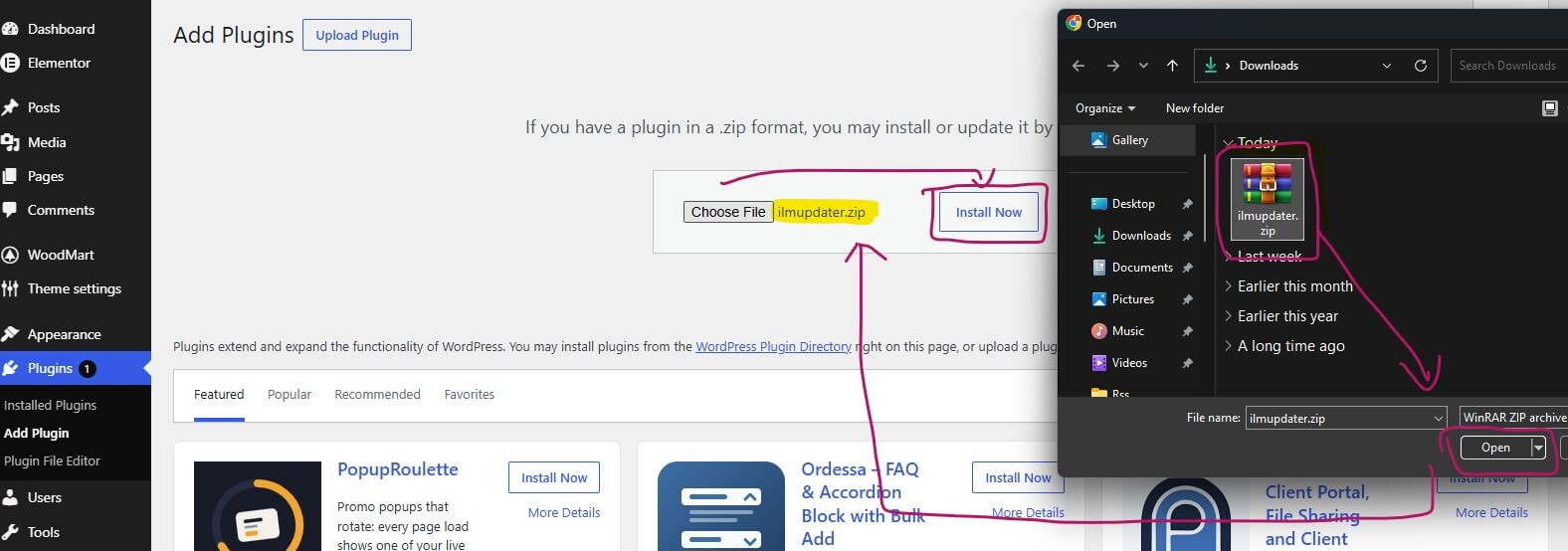
- Log in to your WordPress Dashboard.
- Navigate to Plugins > Add New Plugin.
- Click on the Upload Plugin button.
- Choose the
ILM-WP-Updater.zipfile you just downloaded, click Install Now, and then Activate.
Step 3: “Connect” Your API Key
How to Download & Auto-Update GPL Plugins and Themes ?
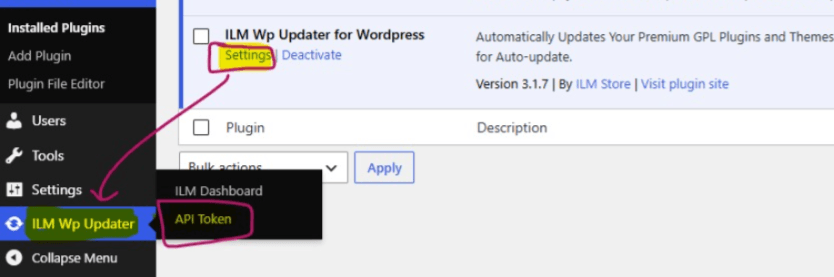
- In your WordPress sidebar, look for the new ILM Wp Updater menu item.
- Click on ILM Wp Updater and navigate to the API Token tab.
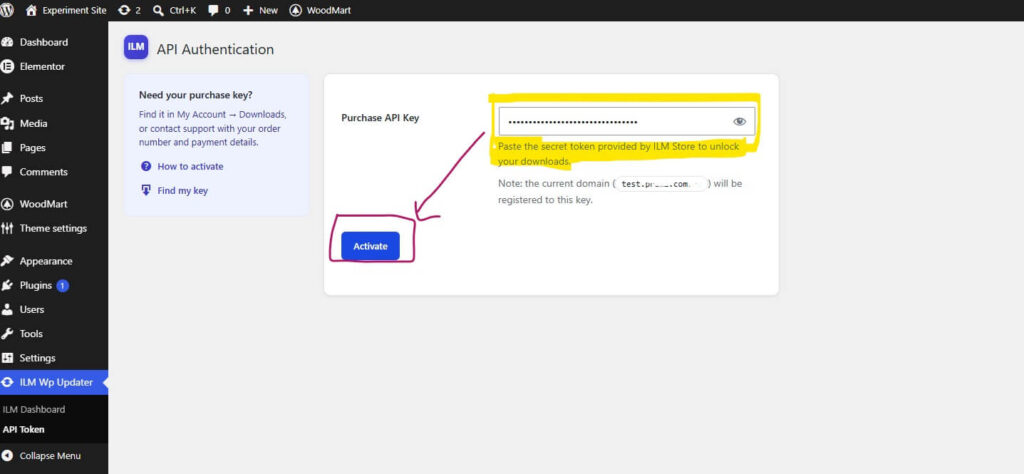
- Paste your API Key into the designated field.
- Click Activate and Will you See “Connected.”

Step 4: Auto-Update GPL Plugins and Themes
Once successfully connected, you can manage your software directly through the plugin interface:
- Go to the ILM Wp Updater menu in your WordPress dashboard.
- You will see a comprehensive list of your purchased themes and plugins.
- You can effortlessly install new items or trigger updates for your existing tools directly from this screen.
Step 5: Enable Native WordPress Updates (GPL Themes AutoUpdate)
To keep your site running smoothly and experience seamless GPL themes autoUpdate functionality, ensure your WordPress native update notifications are working:
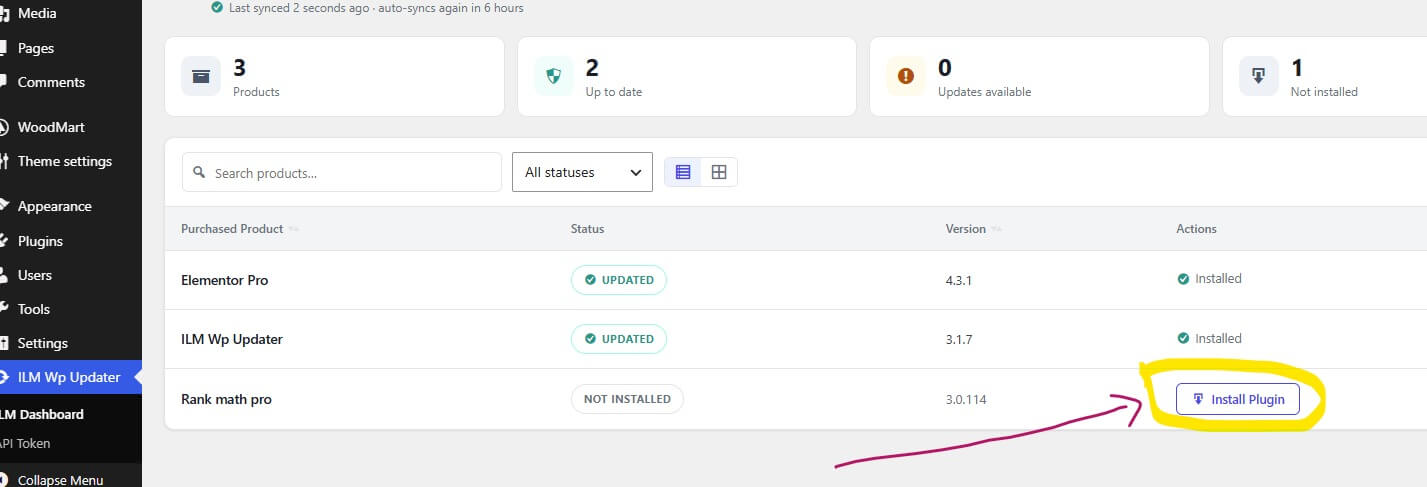
- Navigate to your Appearance > Themes (Installed Themes) or Plugins > Installed Plugins section.
- You will now see the native option to Enable auto-updates for your ILM Store products.
- Alternatively, you can manually click Update Now whenever a new version notification appears in your dashboard.
GPL Plugin र Theme कसरी Download र AutoUpdate गर्ने?
तपाईंले ILM Store बाट खरिद गर्नुभएका थिम र प्लगइनहरूलाई ILM WP Updater Plugin प्रयोग गरेर सजिलै अटो-अपडेट गर्न सक्नुहुन्छ।
ध्यान दिनुहोस्: कृपया आफ्नो Purchased API Key तयार राख्नुहोस्। यो तपाईको My Downloads मा उपलब्ध हुन्छ। यदि तपाईंलाई समस्या भयो भने हामीलाई व्हाट्सएपमा म्यासेज गर्नुहोस् वा हाम्रो वेबसाइटमा सपोर्ट टिकट सिर्जना गर्नुहोस्।
चरण १: ILM Updater डाउनलोड गर्नुहोस्
ilmstore.com मा लगइन गर्नुहोस् र Downloads सेक्सनमा जानुहोस्। त्यहाँबाट ILM WP Updater (.zip) फाइल आफ्नो कम्प्युटरमा डाउनलोड गर्नुहोस्।
चरण २: प्लगइन इन्स्टल (Install) गर्नुहोस्
- आफ्नो वर्डप्रेस (WordPress) ड्यासबोर्डमा लगइन गर्नुहोस्।
- Plugins > Add New Plugin मा जानुहोस्।
- Upload Plugin बटनमा क्लिक गर्नुहोस्।
- तपाईंले डाउनलोड गर्नुभएको
ILM Updater.zipफाइल छान्नुहोस्, त्यसपछि Install Now मा क्लिक गरी Activate गर्नुहोस्।
चरण ३: आफ्नो API Key जडान (Connect) गर्नुहोस्
- आफ्नो वर्डप्रेस साइडबारमा, नयाँ ILM WP Updater मेनु विकल्प खोज्नुहोस्।
- ILM Updater मा क्लिक गर्नुहोस् र API Token ट्याबमा जानुहोस्।
- आफ्नो API Key त्यहाँ पेस्ट (Paste) गर्नुहोस्।
- Save and connect मा क्लिक गर्नुहोस्।
चरण ४: अपडेटहरू व्यवस्थापन गर्नुहोस्
- आफ्नो वर्डप्रेस ड्यासबोर्डमा ILM Updater मेनुमा जानुहोस्।
- त्यहाँ तपाईंले आफ्ना खरिद गरिएका थिम र प्लगइनहरूको सूची देख्नुहुनेछ।
- तपाईंले यहाँबाट सिधै नयाँ प्लगइन/थिमहरू इन्स्टल वा अपडेट गर्न सक्नुहुन्छ।
चरण ५: Update or Download (अटो-अपडेट सुचारु)
तपाईंको साइटलाई राम्ररी चलाउनका लागि, तपाईंको वर्डप्रेस नेटिभ अपडेट सूचनाहरू काम गरिरहेको सुनिश्चित गर्नुहोस्:
- आफ्नो Installed Themes वा Installed Plugins सेक्सनमा जानुहोस्।
- अब तपाईंले ILM Store उत्पादनहरूका लागि Enable auto-updates विकल्प देख्नुहुनेछ, त्यसमा क्लिक गर्नुहोस्।
- वैकल्पिक रूपमा, तपाईंको ड्यासबोर्डमा नयाँ संस्करणको सूचना आउँदा तपाईंले सिधै Update Now मा क्लिक गर्न सक्नुहुन्छ।